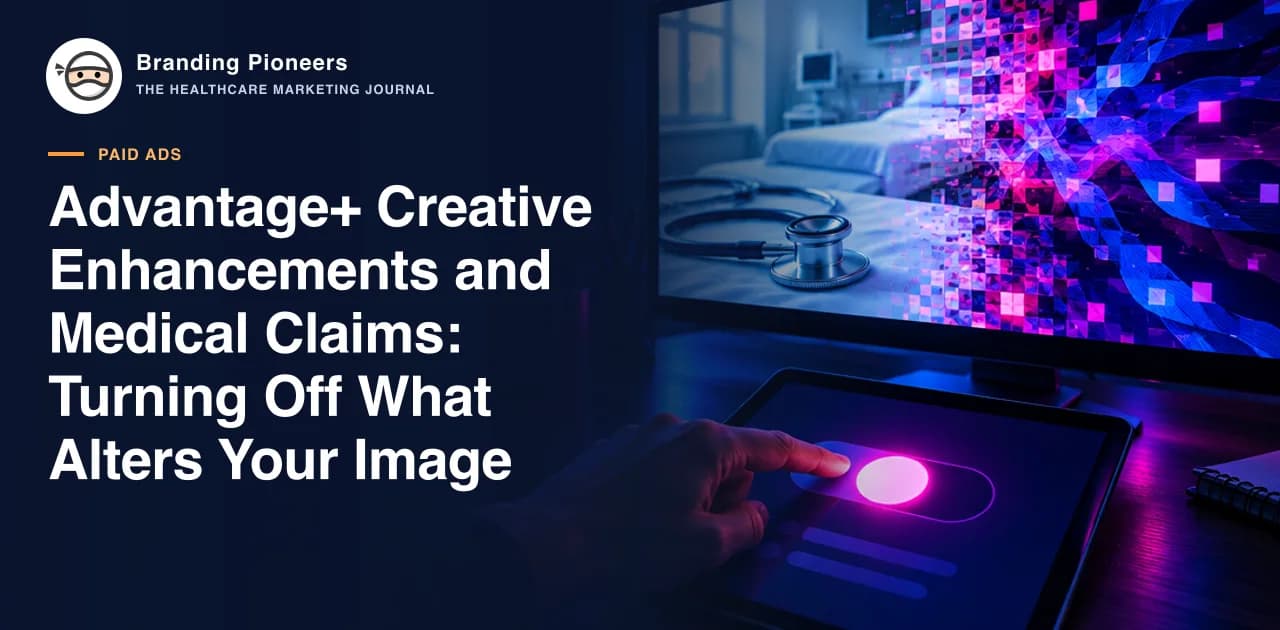
Meta's Advantage+ creative tools can alter an ad after you upload it: adjusting brightness, trimming or expanding an image, adding music, changing text. For a retailer these are conveniences. For a doctor, a clinic or a hospital, an automated edit to a clinician's photo, a treatment image or a line of copy can create a regulatory problem you never approved.
This checklist is for marketing teams that review ads before they run and need a repeatable way to check what Meta may change. It does not list every setting, because Meta changes names and defaults. It tells you what to look for, why it matters in a healthcare context, and how to build the check into your approval workflow.
Verify all settings in your own Ads Manager. This article is not legal advice, and your compliance adviser should review the final process.
What Meta says about enhancements
Meta's help page on Advantage+ creative describes optional enhancements to ads. Per the search summaries of that page, some can be on by default, and they can be switched off at any time. Meta also advises checking ad previews and turning off any enhancement that does not suit the ad. The Marketing API exposes opt-in and opt-out controls for creative features, so teams that create ads through an API should set these explicitly.
Third-party guides list many enhancements, including visual adjustments, text changes, image animation, background generation and added music. The exact list and names vary between sources and over time, so build your checklist from what you actually see in the ad creation screen rather than from a blog post.
Why this matters for health advertising
Advertising by clinicians and providers is regulated. In India, doctors' ability to advertise is restricted under professional conduct rules, and ASCI's code applies to healthcare advertising generally; see our medical advertising regulations glossary and the NMC compliance handbook. In the UAE, health advertisements generally need regulator approval before they run. In all of these, what was approved is what must run.
An automated enhancement can break that principle in several ways.
- Altered clinician photos. Smoothing, relighting, cropping or extending a background changes how a doctor appears. A photo that was approved is no longer the photo shown.
- Altered treatment or result images. Brightness, contrast or generated backgrounds on a clinical image can change how a result looks. If the image should not run at all, that is a different problem; if it was approved, it must not be edited.
- Rewritten text. Automated text variations may add, drop or rephrase words. A cautious claim can become a stronger one. An approved disclaimer can disappear.
- Added music or effects. These do not usually change a claim, but they change the tone of a clinical message, and may not suit the provider's standards.
- Changed calls to action. A text change to the button or headline could imply an offer or an outcome that the clinic never made.
- Placement-driven cropping. An image resized for a story or reel placement can cut off a required disclaimer, licence number or doctor name.
The checklist
Run this on every ad before it goes live and after any Meta interface change.
1. Locate the enhancement controls
Open the ad creation screen at the ad level, not the campaign level. Find the section for creative enhancements or Advantage+ creative. Note which items are on by default. Take a screenshot for the approval record.
2. Decide the policy per enhancement type
| Type | Risk for health ads | Suggested default |
|---|---|---|
| Visual adjustments on clinician photos | Alters appearance of a real person | Off |
| Visual adjustments on treatment images | May alter how results look | Off |
| Background generation or expansion | Changes the context of the image | Off |
| Image animation | Adds motion to a static image | Off for clinical and clinician images |
| Text variations or improvements | May change an approved claim | Off |
| Added music | Tone, not claim | Off unless approved |
| Call-to-action changes | May imply an offer | Off |
| Placement-fitting crops | May hide required text | Review manually in each placement |
This is a conservative starting policy. Your clinical and compliance advisers may allow some items, and any exception should be written down.
3. Switch off, then preview
Turn off every enhancement not explicitly approved. Open the preview for each placement and compare it with the approved master file. Look at faces, edges, text and anything that moves.
4. Check required elements survive placement crops
If the ad needs a disclaimer, registration detail or clinic name, check it is visible in feed, stories and reels. Design a safe zone in the master file so important text sits away from edges.
5. Compare text against the approved copy
Read the headline, primary text and button on the preview and on the live ad. They should be word for word what was signed off.
6. Screenshot and file
Store screenshots of the settings page, the previews and the live ad in the approval folder with the date and the approver. If a regulator or a complaint later questions the ad, you can show what was approved and what ran.
7. Re-audit after launch
Open the live ad a few days after launch. Check the ad as it appears on a real phone, in a real feed. Defaults can change when Meta updates its interface, and duplicated ads may inherit different settings from the originals.
A worked review of one ad
Take a hypothetical ad for a cosmetic dermatology clinic in Delhi: a single image of the consulting dermatologist, a headline naming the clinic and the consultation, and a short line of primary text with a booking button.
At review, the team opens the ad-level creative settings and finds three enhancements switched on that nobody chose. They switch them off, open the preview for each placement and compare against the approved master. In the story placement, the crop removes the clinic's name from the lower edge. They return to the design file, move the name into the safe zone and re-export. They then read the headline and primary text in the preview against the signed-off document, word for word, and they find the text matches. They save screenshots with the date and the approver's name.
None of those steps is difficult. The point is that each one is a separate failure the team would have missed by only checking the uploaded file. The uploaded file is what you approved, but the ad that runs is what the platform builds from it.
Where else the platform may touch your creative
Enhancements are not the only place an ad can change. Dynamic formats can assemble headlines, images and descriptions from separate assets you upload, so a combination appears that you never reviewed as a whole. Catalogue-style ads can pull images and text from a feed. Automated placement can show the ad in surfaces you did not preview.
For each of these, the rule is the same: approve combinations, not only components. If a headline and an image make an unintended claim together, such as a general dental image beside a headline implying a specific outcome, the pairing is the problem. Where that is impractical to check, reduce the number of variations so every combination can be reviewed by a person.